User Guide
Correct data entry for every feature. Read this before relying on app outputs for operational decisions.
⚙️ 0. Settings & First Launch
Configure the app before performing any calculations. Incorrect units will silently produce wrong outputs in every section.
Language
Select TR (Turkish) or EN (English) from the top bar. This setting is saved between sessions.
Units — Set this first
| Setting | Options | Note |
|---|---|---|
| Speed | Knots (default) / km/h | All ETA, TTG, fuel calcs use this unit. Mixing knots input with km/h setting causes large errors. |
| Distance | NM (default) / km | All range inputs interpret this unit. |
| Depth / Draft | Meters (default) / feet | Squat, UKC, and all draft fields use this. |
| Temperature | °C / °F | Used in atmospheric refraction corrections for celestial. |
Night / Bridge Mode
Night-red theme reduces white light on the bridge. Activate it via Settings → Appearance. Bridge mode can additionally suppress non-critical notifications during a watch.
🚢 1. Vessel Profile Setup
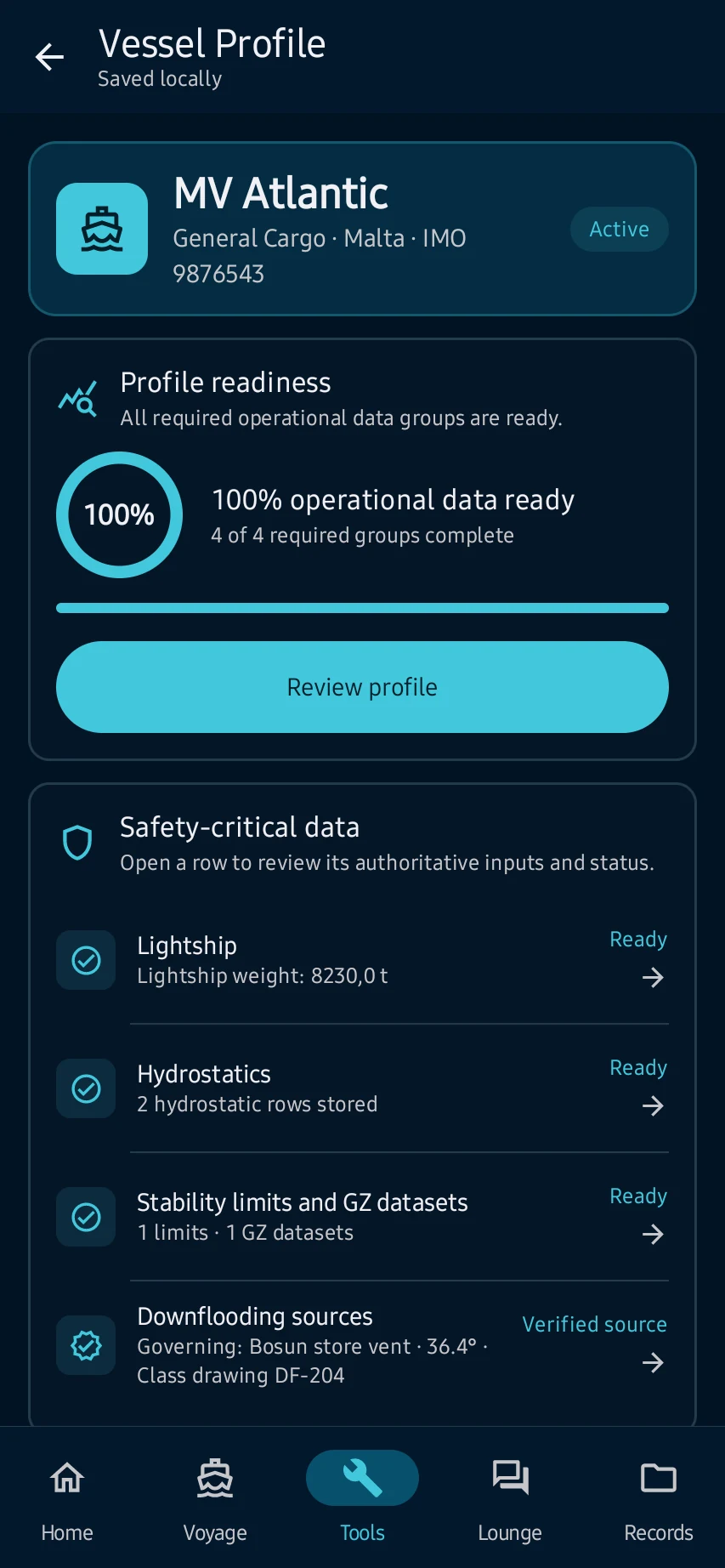
Every stability, draft survey, and tank sounding result depends on this data being correct. Errors here propagate to all downstream calculations.
Basic Particulars
| Field | What to Enter | Where to Find It |
|---|---|---|
| IMO Number | 7-digit number, e.g. 9876543 |
Vessel certificates / AIS |
| Vessel Name | Official name as per registry | Certificate of Registry |
| LOA / LBP | Length Overall / Length Between Perpendiculars in meters | Stability Booklet — General Arrangement |
| Breadth (B) | Moulded breadth in meters | Stability Booklet |
| Block Coefficient (Cb) | Dimensionless 0.5–0.85, e.g. 0.72 |
Stability Booklet — Ship Particulars table |
| Summer Draught | Full loaded draft at summer load line (m) | Load Line Certificate |
Lightship Data
| Field | What to Enter | Common Mistakes |
|---|---|---|
| LWT (Lightship Weight) | Lightship displacement in metric tonnes | Do not confuse with DWT (deadweight). LWT is the ship's own weight without cargo/fuel. |
| LCG | Longitudinal Centre of Gravity in meters, measured from AP (Aft Perpendicular) | Some booklets use FP reference — check and convert if needed. A wrong reference shifts the trim calculation by up to the full ship length. |
| VCG (KG) | Vertical Centre of Gravity from keel in meters | This is the single most sensitive input. A 0.1 m error in KG can flip a PASS to a FAIL on GM criterion. |
| TCG | Transverse Centre of Gravity from centerline (positive = starboard) | Usually 0 for symmetric vessels. Enter list data here, not via ballast. |
Hydrostatic Table & KN Cross-Curves
The hydrostatic table maps displacement to draft, TPC, LCB, BM, etc. The KN table maps displacement and heel angle to righting lever values.
- Enter displacement values in ascending order from lightest to heaviest.
- The app interpolates between rows — gaps larger than 500 t reduce accuracy.
- KN values are entered per heel angle column (typically 10°, 20°, 30°, 40°, 50°, 60°, 70°).
- CSV Import: First column = displacement (t), subsequent columns = KN at each heel angle. Use comma or tab separators. Header row is optional.
Tank Calibration Tables
Each tank needs a calibration table mapping sounding depth (or ullage) to volume in m³.
| Field | What to Enter |
|---|---|
| Tank Name | Unique identifier — must match exactly when entering ROB data in a stability case. |
| Mode | Sounding = measured from bottom up. Ullage = measured from top down. Select the mode that matches your sounding tape measurements. |
| Capacity (m³) | Maximum physical volume from the capacity plan. |
| VCG, LCG, TCG of tank | Used for FSM (Free Surface Moment) correction. Enter centroid position from the capacity plan. |
| FSM constant (I) | Inertia of the free surface. Provided in the stability booklet per tank. Critical — a missing FSM correction can overestimate GM by 0.3–0.8 m. |
⚖️ 2. Stability Cases
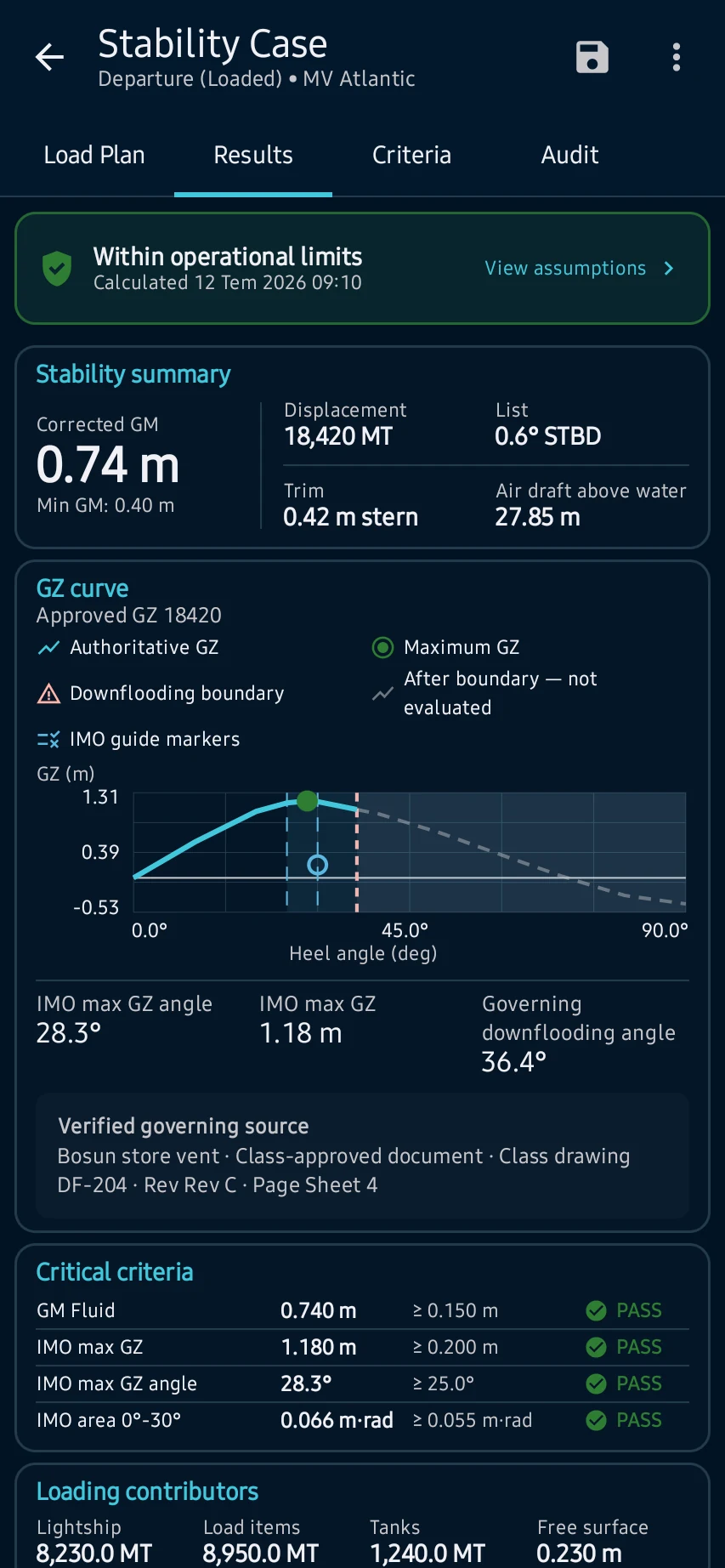
A stability case calculates GM and the GZ curve for a specific loading condition. Always verify against the approved stability booklet's loading conditions.
Creating a Stability Case
- Select the correct vessel profile. If the wrong profile is selected, all results will be wrong.
- Name the case descriptively (e.g., "Port A Departure — Full Load 2026-03-01").
- Enter cargo hold loads. For each hold: weight (t), VCG (m from keel), LCG (m from AP), TCG (m from CL).
- Enter tank ROB. Select each tank by name, enter the sounding or ullage reading in cm or mm as configured. The app looks up the volume from the calibration table.
- Enter constants: crew & effects, stores, fresh water, miscellaneous items with their positions.
- Review the summary: displacement, drafts, GM, GZ curve values.
Reading GM Output
| Indicator | Meaning |
|---|---|
| GM > 0 (GREEN) | Vessel is statically stable. Check GZ curve criteria as well. |
| GM < minimum (AMBER) | Statutlory minimum GMₒ is not met. Do not depart without corrective ballasting. |
| GM < 0 (RED) | Vessel is statically unstable — lolling condition. Critically dangerous. Do not operate. |
📏 3. Draft Survey
Draft surveys calculate the cargo loaded or discharged at a port by comparing the vessel's displacement before and after operations.
Reading the Draft Marks
Read draft marks at 6 positions: FWD Port, FWD Stbd, MID Port, MID Stbd, AFT Port, AFT Stbd. Each is read to the nearest 5 mm (bottom of the highest visible mark).
Input Fields
| Field | What to Enter |
|---|---|
| FWD / MID / AFT | Observed draft in meters, e.g. 5.42 (not 5m 42cm — always decimal
meters) |
| Trim correction distances | Distance from draft mark to AP and FP in meters — from vessel's trim tables in the booklet. Do not estimate. |
| Dock Water Density | Measured with a hydrometer at the ship's side. Enter in t/m³, e.g.
1.018. Never assume 1.025 unless confirmed.
|
| FWA / TPC | Fresh Water Allowance and Tonnes Per Centimetre from the hydrostatic table at the mean draft. |
🌟 4. Celestial Navigation
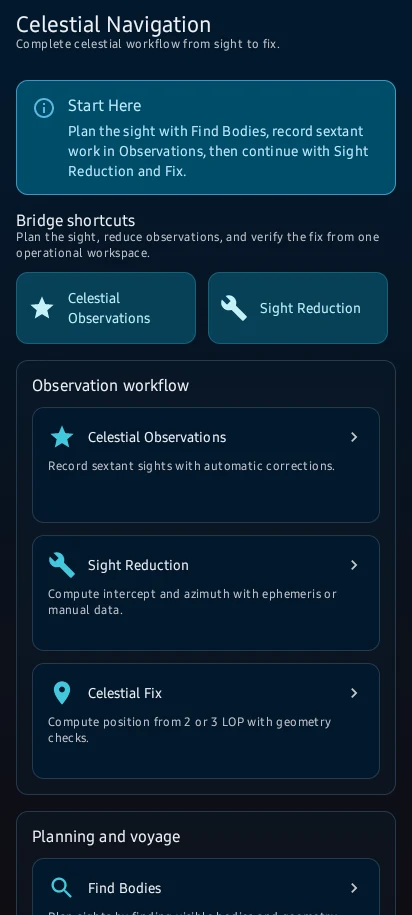
The celestial engine uses IAU SOFA algorithms and JPL DE440 ephemeris. Results are accurate if and only if the inputs are correct — especially UTC time.
Find Bodies — Pre-Sight Planning
Use this to identify observable stars/planets before morning/evening twilight.
- Enter your Assumed Position (AP) — latitude and longitude. Format: DD°MM'.M (e.g.
45°22.5'N) or decimal degrees (45.375). - Enter the Date and UTC time of planned observation (start of nautical twilight for star sights).
- The app lists visible bodies with their computed altitude (Hc) and azimuth (Zn). Select bodies with good geometry — azimuths spread at least 60° apart for a reliable fix.
- Note down GHA and declination for your selected bodies to pre-compute sight reduction manually if needed.
Sextant Sight Recording
| Field | What to Enter | Key Details |
|---|---|---|
| Hs (Sextant Altitude) | Degrees, minutes, tenths: e.g. 32°14.5' |
Read from sextant arc. Do not round to nearest minute. |
| UTC of Sight | hh:mm:ss with seconds | Use the chronometer reading at the exact instant of observation. |
| Index Error (IE) | Value in minutes of arc with sign | On the arc (instrument reads positive when set to zero) → IE is positive → subtract from Hs. Off the arc → IE is negative → add to Hs. The app handles the correction automatically once you enter the signed value. |
| Height of Eye | Observer's eye height above sea level in meters | Measure from sea surface, not from bridge deck. Affects dip correction. |
| Temperature | Air temperature in °C | Affects atmospheric refraction. Use the outside air temperature reading. |
| Pressure | Atmospheric pressure in hPa / mb | Use the barometer reading. If unknown, 1010 hPa is a reasonable default. |
Sight Reduction
After entering all sights, run sight reduction to get the intercept and azimuth for each body.
- Confirm the assumed position (AP) — use the nearest whole degree of latitude and longitude to your DR position.
- Review the computed Hc (computed altitude) and compare with the corrected Ho (observed altitude). The difference is the intercept.
- Check Toward or Away: if Ho > Hc → the LOP is Toward the body; if Ho < Hc → Away.
- Plot the intercept on the chart from the AP, perpendicular to the azimuth line.
Fix & Running Fix
Select 2 or 3 completed sights from the session. The app intersects the LOPs and displays the fix position and geometry quality score.
- A quality score above 80% indicates good geometry (well-separated azimuths, consistent intercepts).
- For a running fix, advance the first LOP along the vessel's DR track to the time of the second sight before intersecting. The app does this automatically if sight times are correctly recorded.
- A fix with all intercepts below 20 NM and consistent directions is reliable. Large intercepts suggest a timing error or misidentified body.
🗺️ 5. Voyage Planning
Creating a Voyage
- Tap New Voyage. Enter the voyage name, departure port, arrival port, and planned departure date/time (UTC).
- Add waypoints. Enter each waypoint as latitude/longitude. Supported formats:
45°22.5'N 012°30.0'E(DDM) or45.375 12.500(decimal degrees, positive = N/E). - For each leg, choose Rhumb Line or Great Circle. Use Rhumb Line for coastal passages and short ocean legs (<500 NM). Use Great Circle for long ocean passages where the shortest track is a curve — the app will display the initial course and distance.
- Enter planned speed for each leg. This generates ETA and fuel estimates per waypoint.
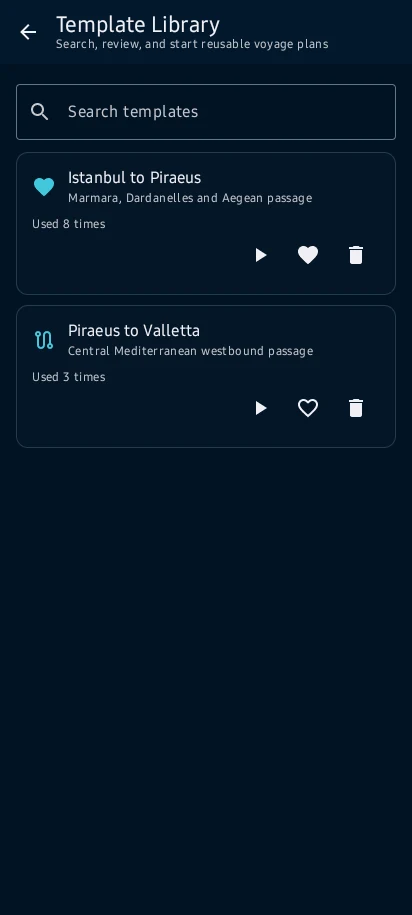
Voyage Templates
Save a completed voyage as a template to reuse for the same route. When creating a new voyage, select from templates to pre-fill the waypoints and then update the departure date and speed.
🔢 6. Quick Calcs
Standalone calculators for immediate bridge use. Units respect your Settings configuration.
ETA / TTG / Fuel
| Calculator | Inputs | Common Errors |
|---|---|---|
| ETA | Distance (NM), Speed (knots) | Entering distance in km when unit is set to NM. Result will be off by factor 1.85. |
| TTG + Fuel | Distance (NM), Speed (knots), Consumption (t/day or t/hr) | Mixing t/day vs t/hr input — check the label next to the consumption field. |
| Fuel Endurance | ROB fuel (t), Consumption rate | ROB should be at-sea ROB, not the departure figure. Account for port consumption separately. |
| TSD ETA | Set (°T), Drift (knots), Course Made Good, SOG | Set and drift from current data — enter as True direction, not Magnetic. |
Safety Calculations
| Calculator | Key Inputs | Notes |
|---|---|---|
| Squat | Speed (knots), Depth (m), Cb, Beam (m) | Enter the actual channel depth, not the charted depth. Apply tidal correction first. |
| UKC | Draft (m), Depth (m), Squat (m), Roll allowance (m) | All values in the same unit (meters). UKC = Depth − Draft − Squat − Roll − Swell allowance. |
| Anchor Watch | Anchor drop position (lat/lon), Watch radius (m), Vessel length | Set the anchor drop position before dropping anchor. If entered after, the initial LOP will be incorrect. |
| CPA / TCPA | Own course/speed, Target bearing/range/course/speed | All courses in degrees True. Bearing is in degrees True from your vessel. Range in NM. |
| MOB | Press the button immediately at the MOB moment | Time of MOB is auto-recorded. Enter vessel course and speed at that moment. Do not delay. |
Navigation Calculations
| Calculator | Key Inputs | Notes |
|---|---|---|
| Rhumb Line | Point A lat/lon, Point B lat/lon | Uses the Mercator sailing formula. Input in DDM or decimal degrees. |
| Great Circle | Point A lat/lon, Point B lat/lon | Returns initial course and distance. Vertex position is also displayed. |
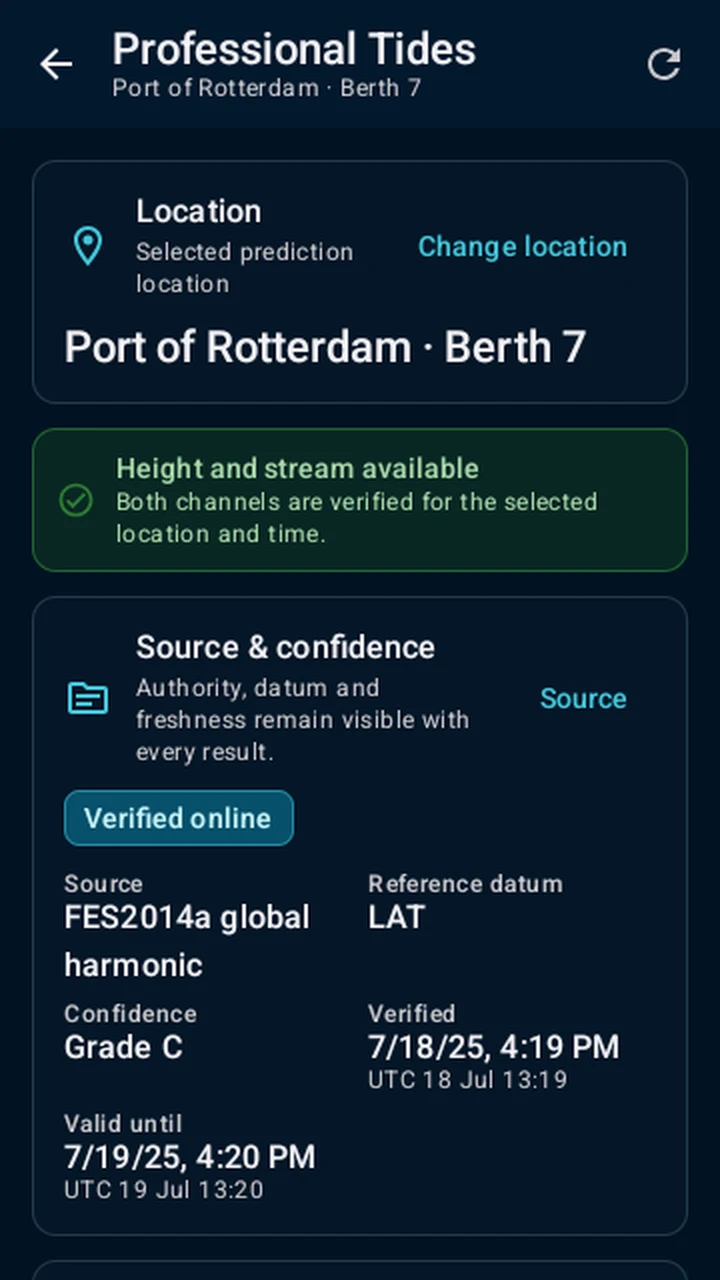
| Tide Height | HW/LW times and heights, Interval from HW | Enter times in the same time zone (UTC recommended). Use published Tide Table values — do not estimate. |
| Dipping Distance | Height of object (m), Height of eye (m) | Returns geographic range (light theoretical visibilty). Compare with listed luminous range for actual visibility. |
| Compass | True heading, Variation (°W/E), Deviation (°W/E) | Sign convention: West variation/deviation is negative. Follow the mnemonic TVMDC (True → Variation → Magnetic → Deviation → Compass). |
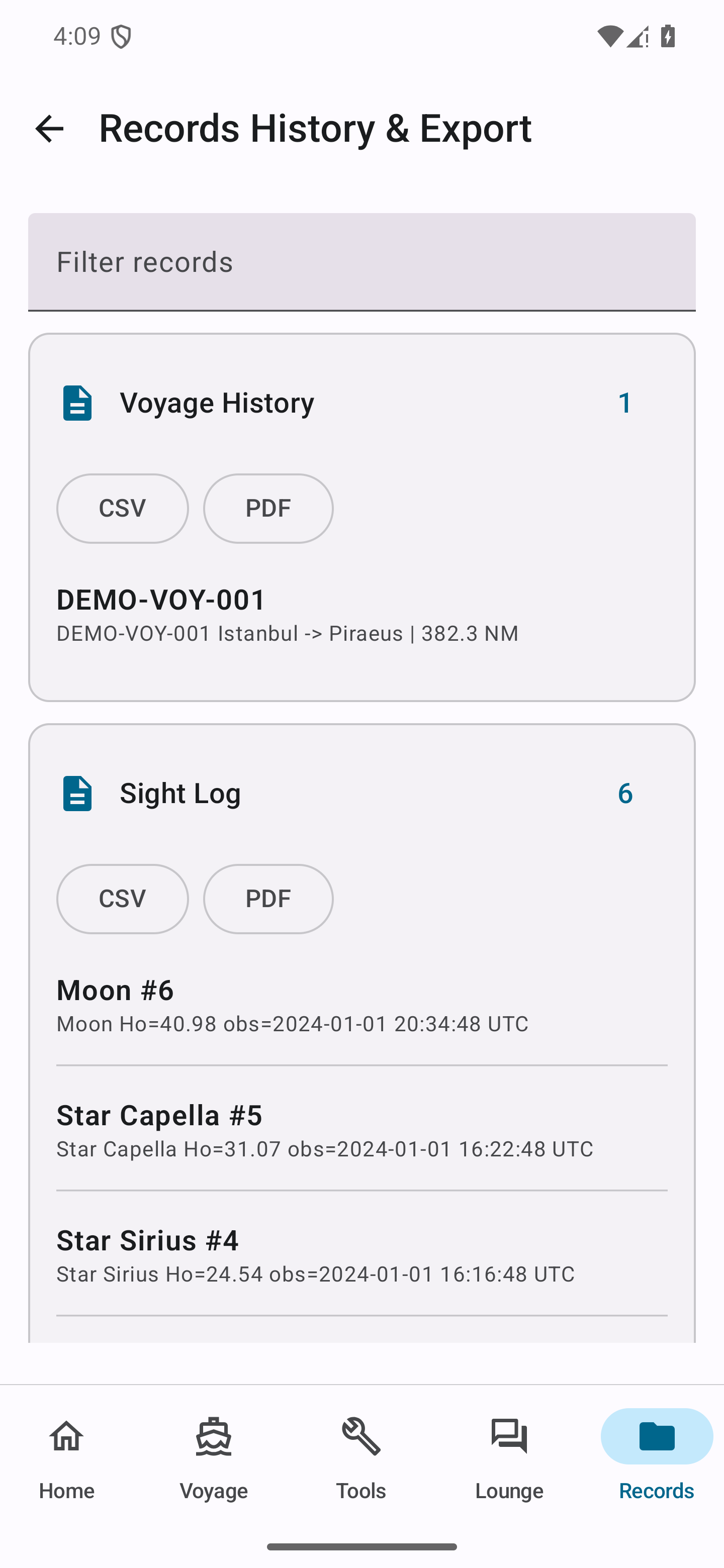
📋 7. Records & Checklists
Tank Soundings Log
Select the tank by name (must match the vessel profile exactly), enter the sounding or ullage, confirm the fluid type and density. The app converts to volume using the calibration table and calculates metric tonnes ROB.
Noon Report
Position is manually entered (from GPS or noon fix). Speed and distance are entered from the patent log or ECDIS. Double-check that the date is correct — the report is linked to the voyage date.
Cargo Records
Cargo records are linked to the vessel profile's hold configuration. Each hold is selected by name. Enter the commodity, weight (t), and, where applicable, the stowage factor for volume calculations.
Departure / Arrival Checklist
Checklists are templates — each item is manually ticked. The app records the time of completion and the officer's name for each item. Complete items in order; do not tick items that have not been physically verified.