Open Records to inspect voyage, stability, draft, tank and calculation history. Export only supported formats and review the generated file before relying on it in another system.
Before you start
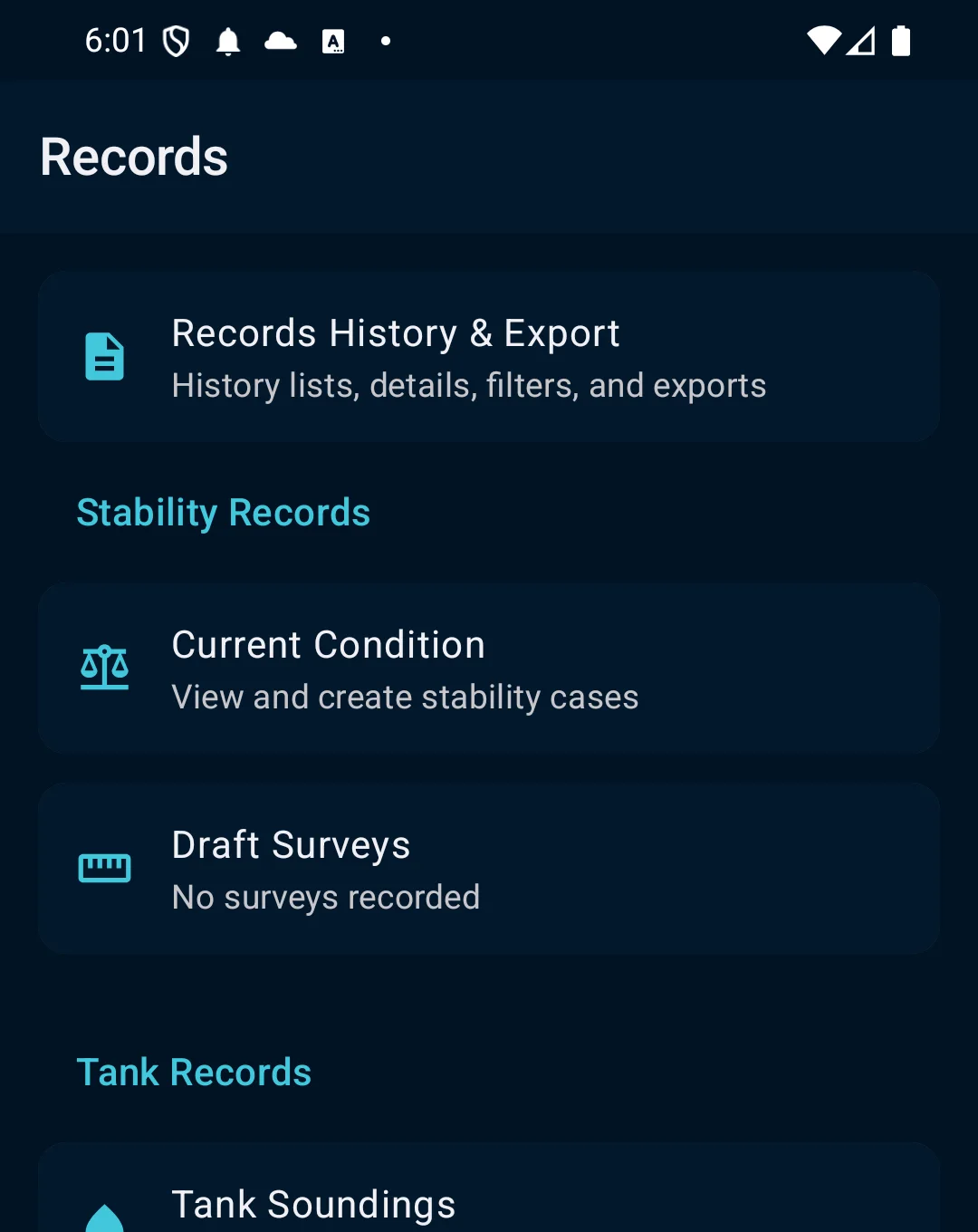
Open Records for the active vessel and choose History & Export. The Records hub keeps stability, draft-survey, tank and cargo history in one place.
App steps
Open Records for the active vessel and choose History & Export. The Records hub keeps stability, draft-survey, tank and cargo history in one place.
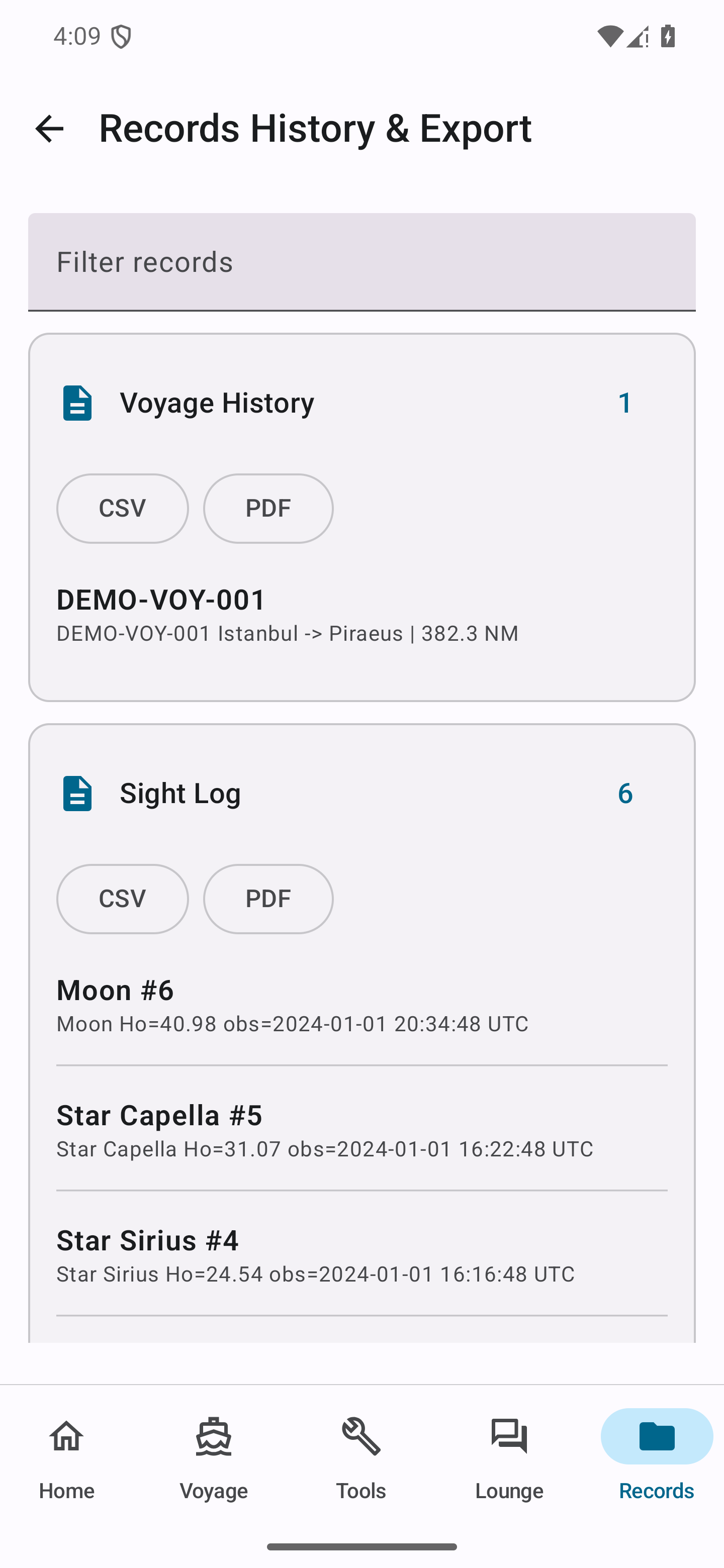
In the populated overview, review voyage history, celestial sights and fix sessions; filter by vessel, date or record type when needed.
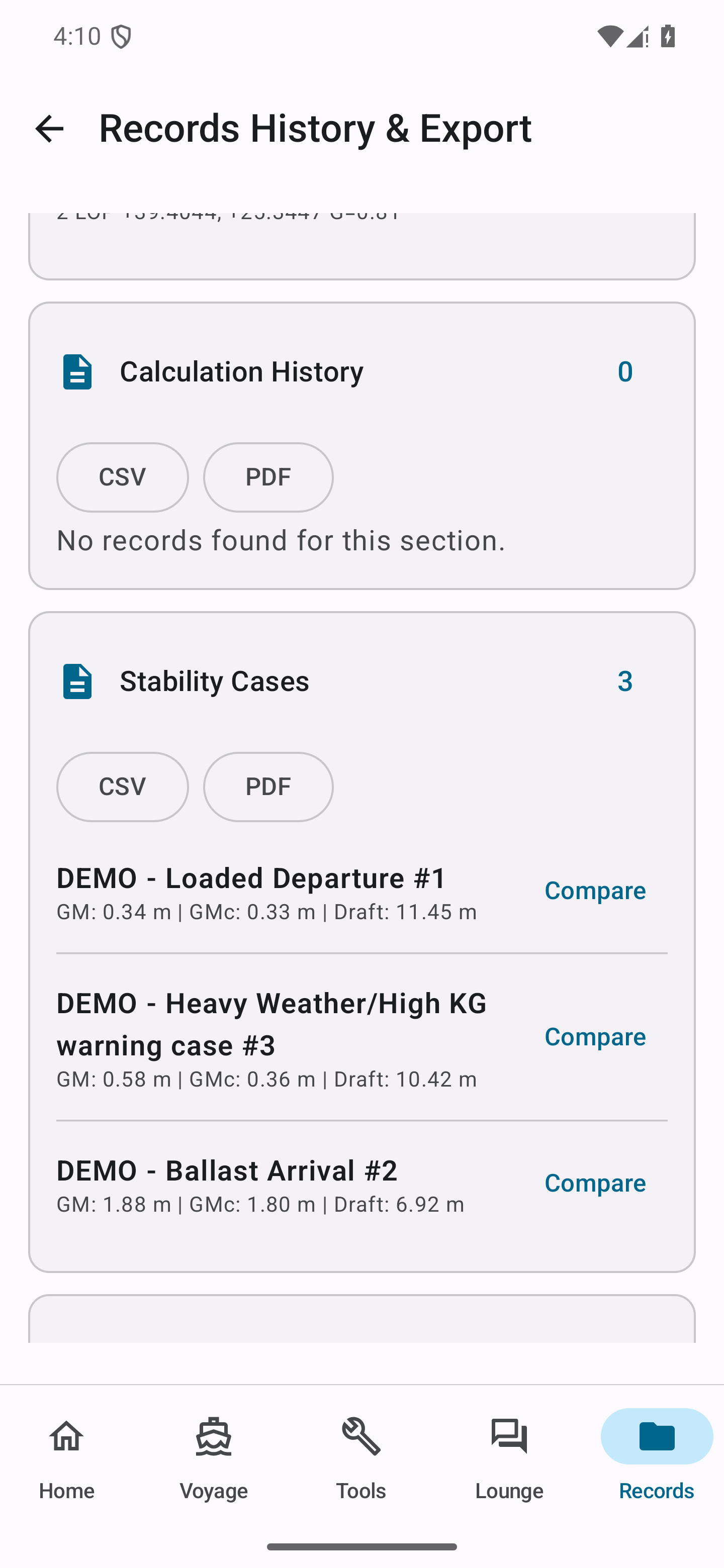
Open the stability and track section to confirm case names, status, source details and timestamps before comparing or exporting records.
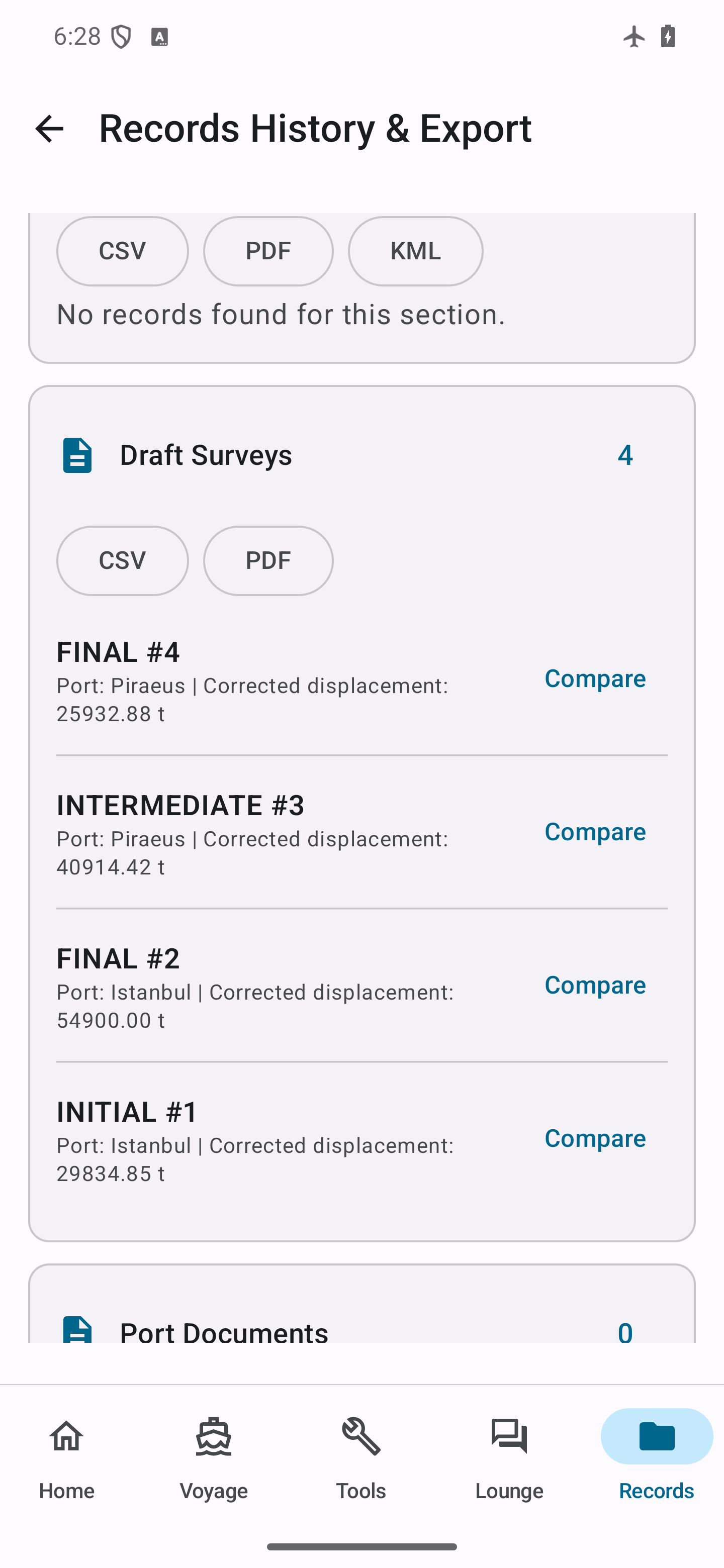
Open the draft-survey section, verify survey type, port and time, then export only the intended record and inspect the exported file.
See the main screens
01
Open Records for the active vessel and choose History & Export. The Records hub keeps stability, draft-survey, tank and cargo history in one place.
02
In the populated overview, review voyage history, celestial sights and fix sessions; filter by vessel, date or record type when needed.
03
Open the stability and track section to confirm case names, status, source details and timestamps before comparing or exporting records.
04
Open the draft-survey section, verify survey type, port and time, then export only the intended record and inspect the exported file.
CaptainCalc is decision support. It never replaces approved stability data, loading computers, ECDIS, official publications, procedures or professional judgment.
Get CaptainCalc on Google Play
Freemium keeps essential online tools available with ads. Premium removes ads, raises limits and unlocks the complete offline professional workspace.