
USER GUIDE
Create or load a vessel profile
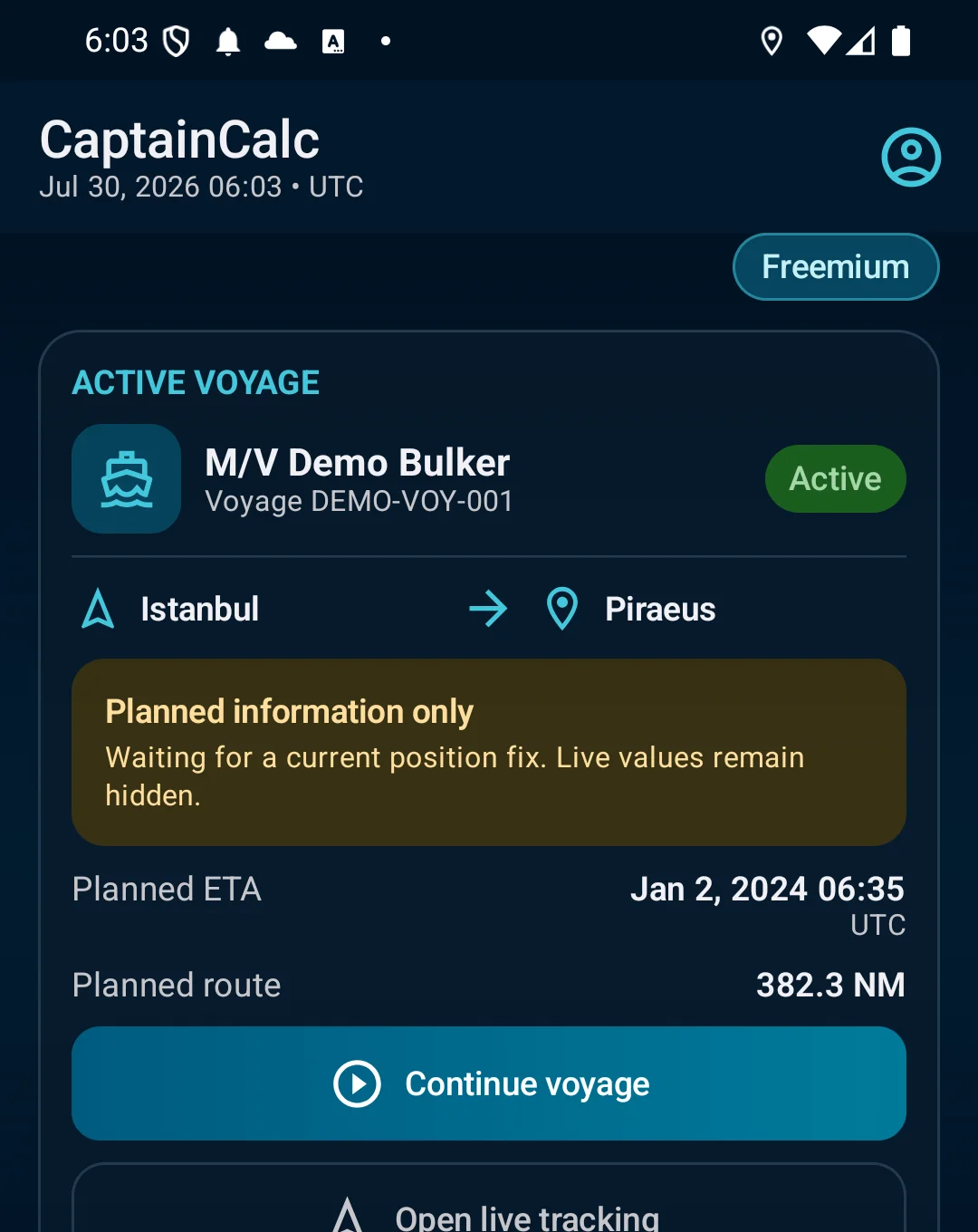
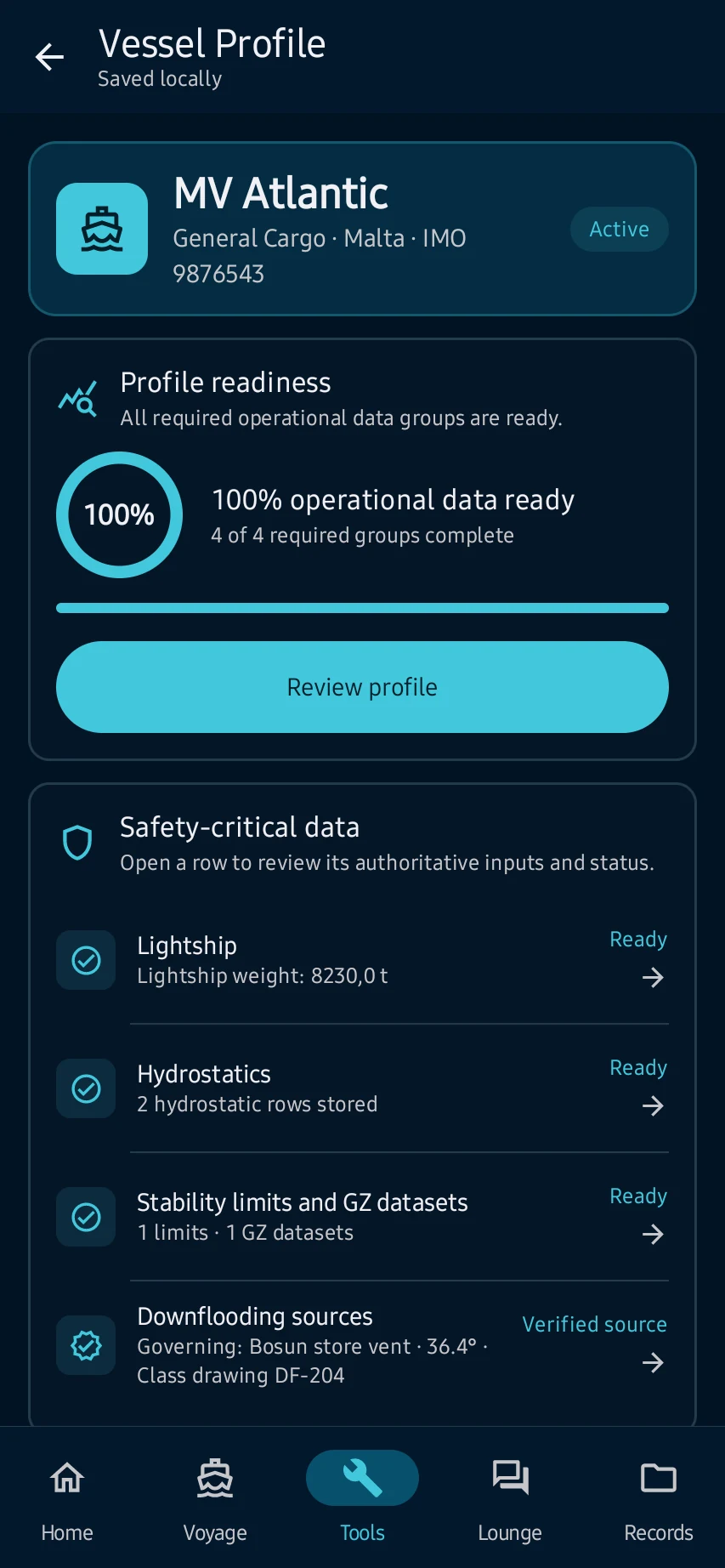
Open the profile from Home and enter approved vessel, hydrostatic, stability, tank and capacity data. You can explore the app with the built-in example vessel, then replace every example value before real work.
How to interpret it safely
Open the profile from Home and enter approved vessel, hydrostatic, stability, tank and capacity data. You can explore the app with the built-in example vessel, then replace every example value before real work.
The user guide explains what the information means, how the result is produced and which warnings or limits matter.
See the main screens
Practical learning and web tools
What to know before you use it
How to use this feature well
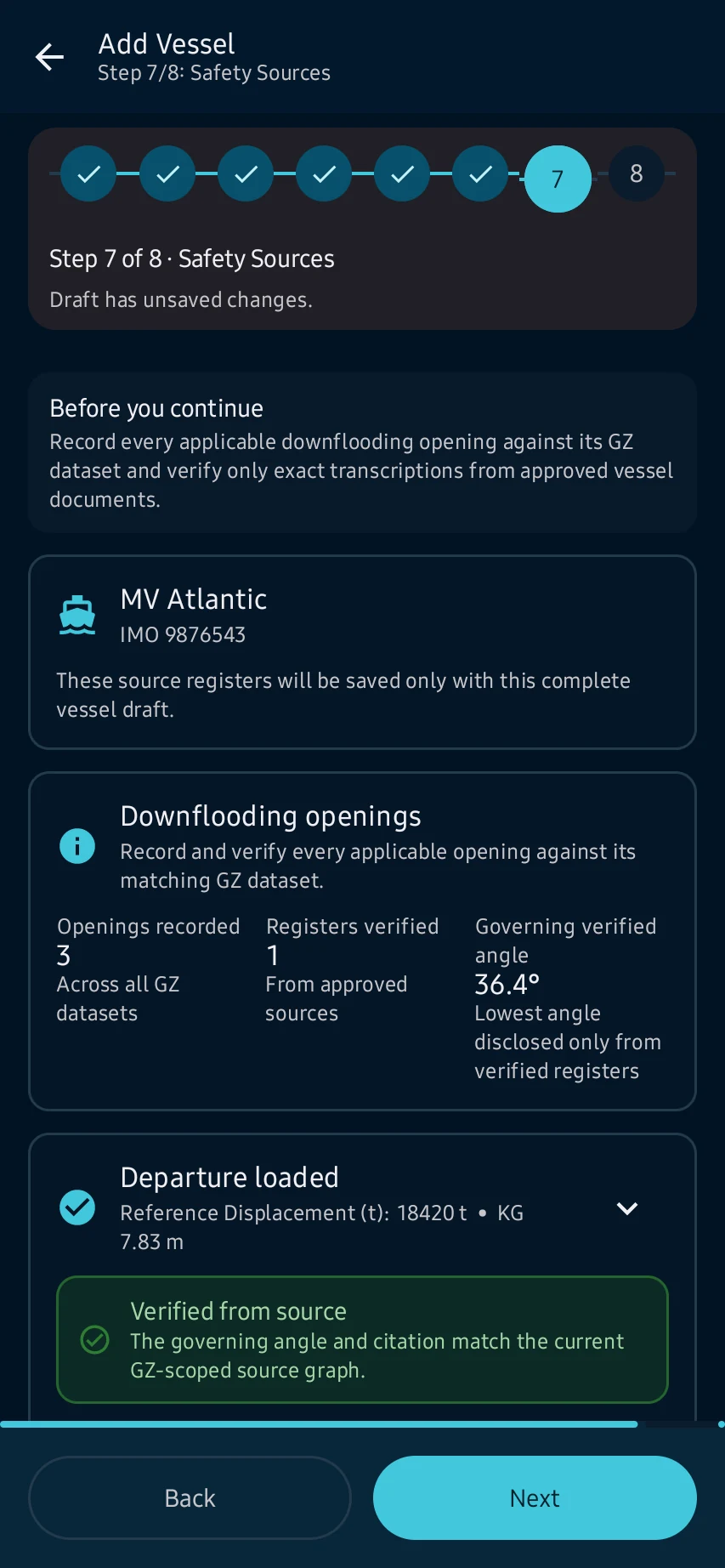
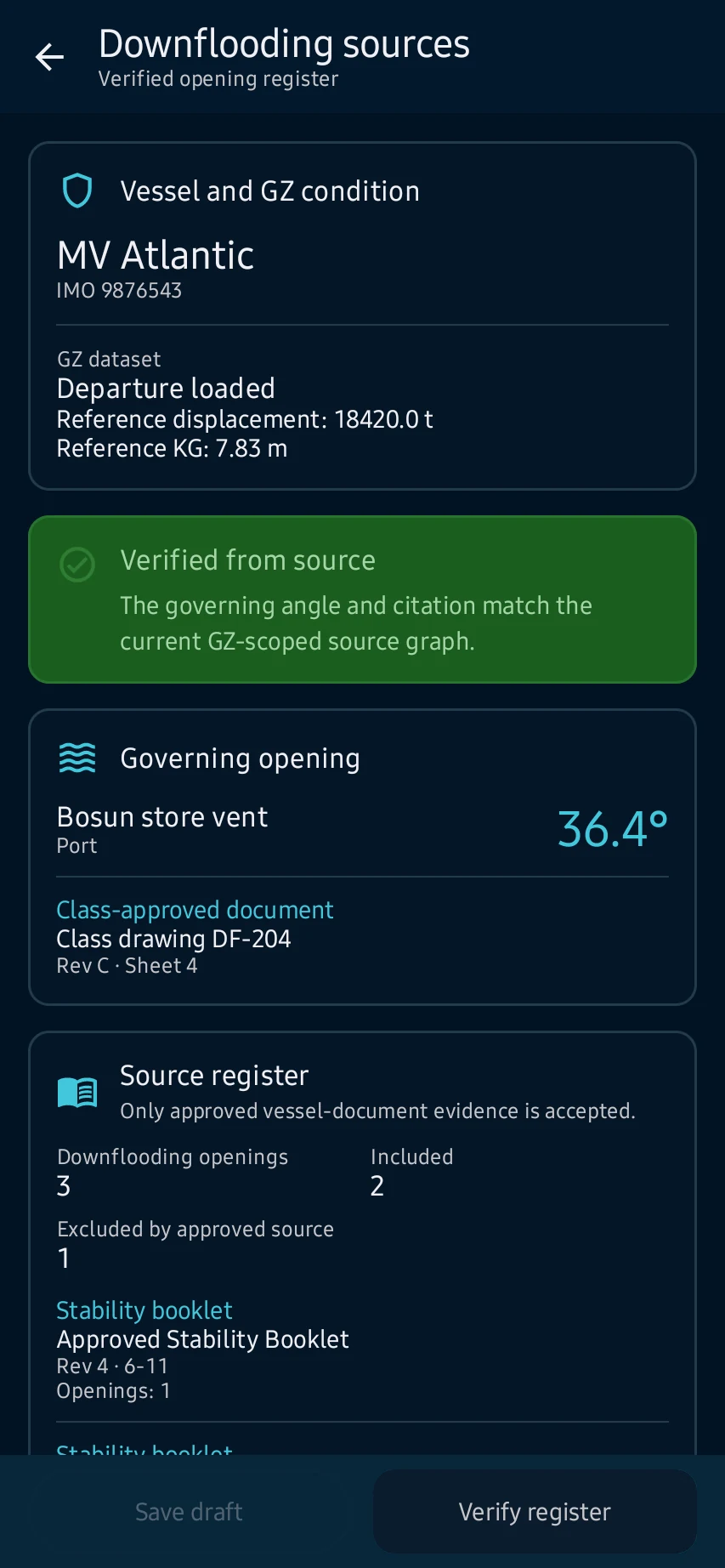
Build a vessel profile from approved particulars, hydrostatics, tanks, openings and limits so later calculations use the intended ship and condition.
Where the information comes from
Create or load a vessel profile: Before using a result, check its provider, datum, time basis, confidence and installed-data details.
Check your inputs
Create or load a vessel profile: Complete missing information and correct inconsistent or out-of-range vessel, position and calculation values.
Understand the calculation
Create or load a vessel profile: Keep the units, vessel particulars, time zone and selected method in view when reading a result or export.
When to stop and review
Create or load a vessel profile: Read each warning, correct its cause and recalculate before continuing.
Use it within its limits
Create or load a vessel profile: CaptainCalc supports decisions; approved vessel documents, official publications and the master's judgement remain authoritative.
Continue learning
CaptainCalc is decision support. It never replaces approved stability data, loading computers, ECDIS, official publications, procedures or professional judgment.
Get CaptainCalc on Google Play
Freemium keeps essential online tools available with ads. Premium removes ads, raises limits and unlocks the complete offline professional workspace.