
STEP-BY-STEP GUIDE

Install and complete first launch

Open the profile from Home and enter approved vessel, hydrostatic, stability, tank and capacity data. You can explore the app with the built-in example vessel, then replace every example value before real work.

Before you start

Open Settings and select the working language and units shown by the app; confirm the interface changed before entering vessel data.
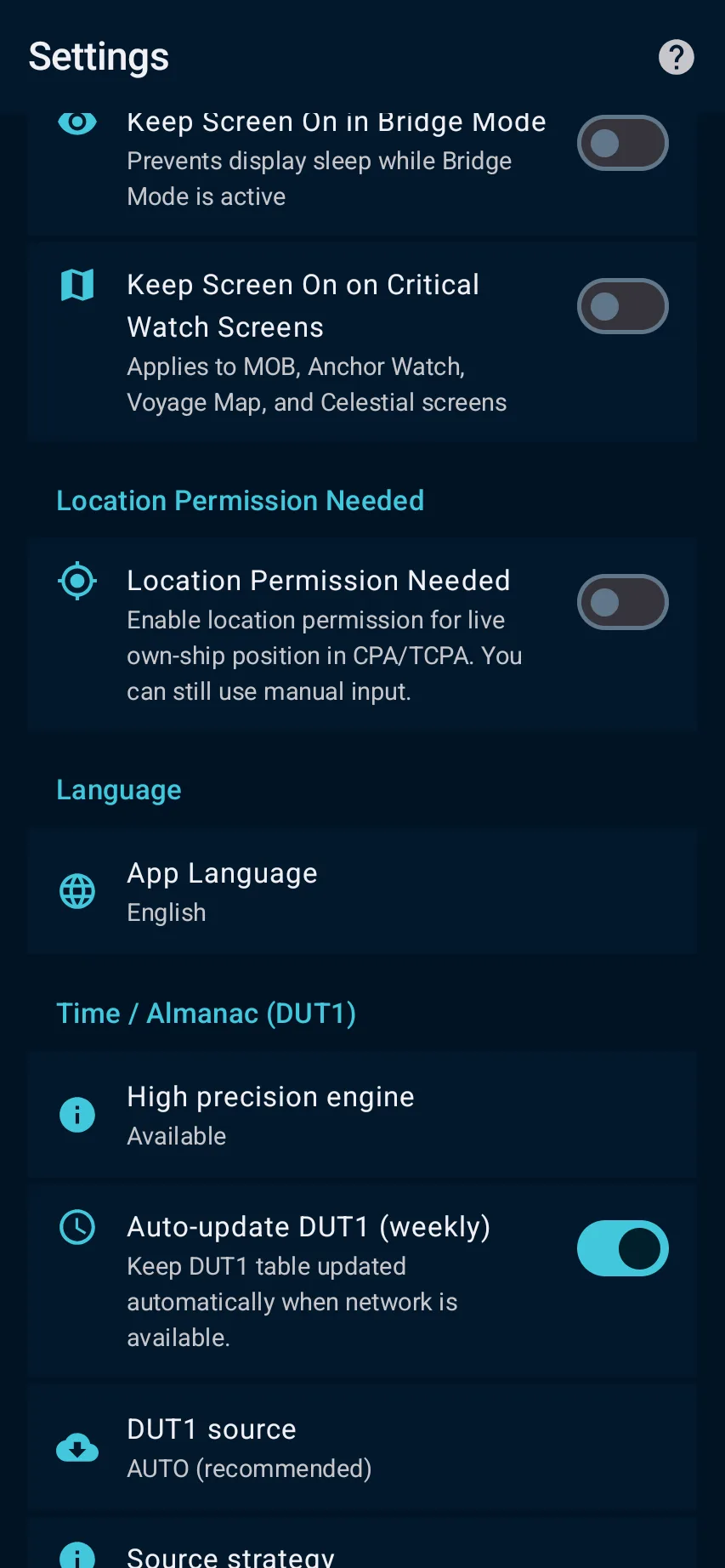
App steps

  1. Open Settings and select the working language and units shown by the app; confirm the interface changed before entering vessel data.
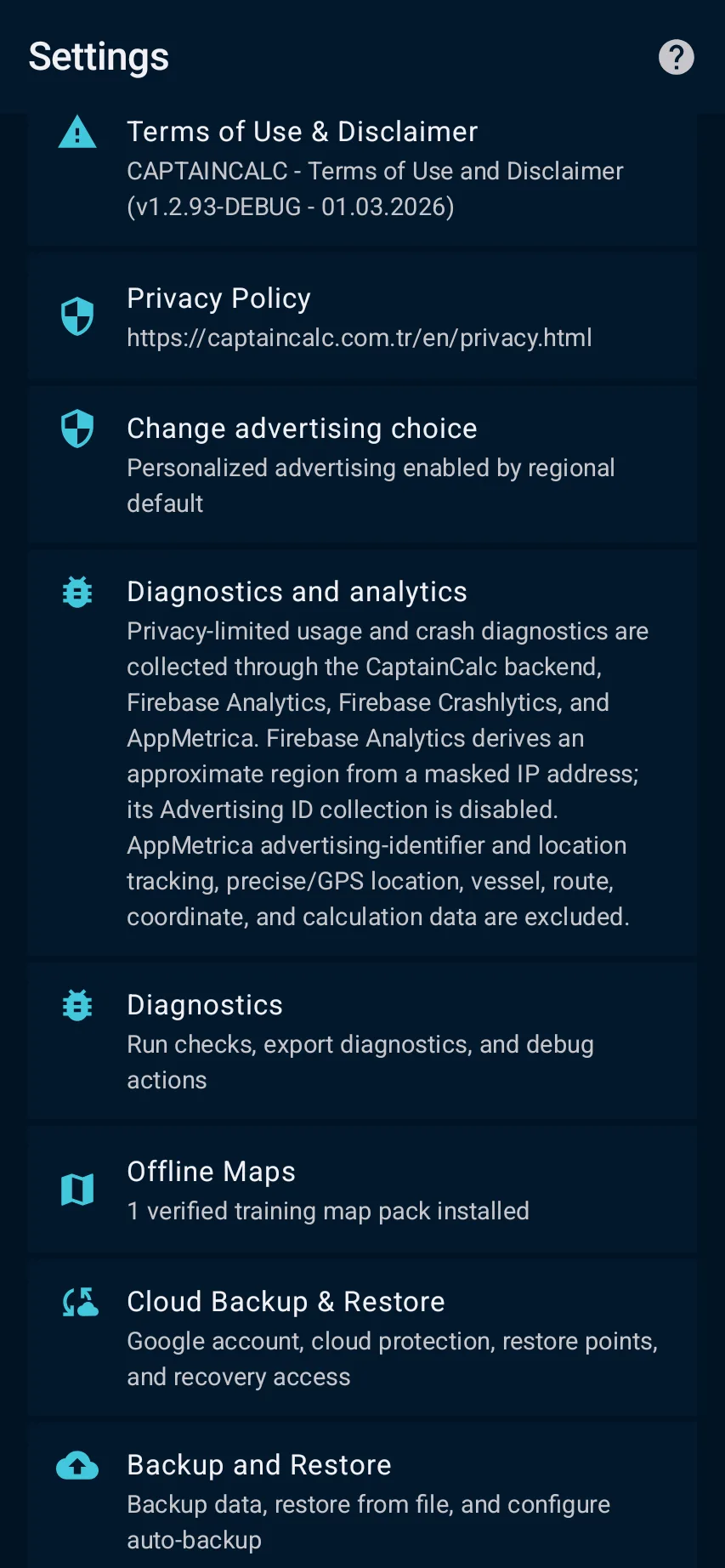
  2. Review Privacy, advertising, offline and backup controls for your region and access level; read the decision-support and data-boundary notices before continuing.
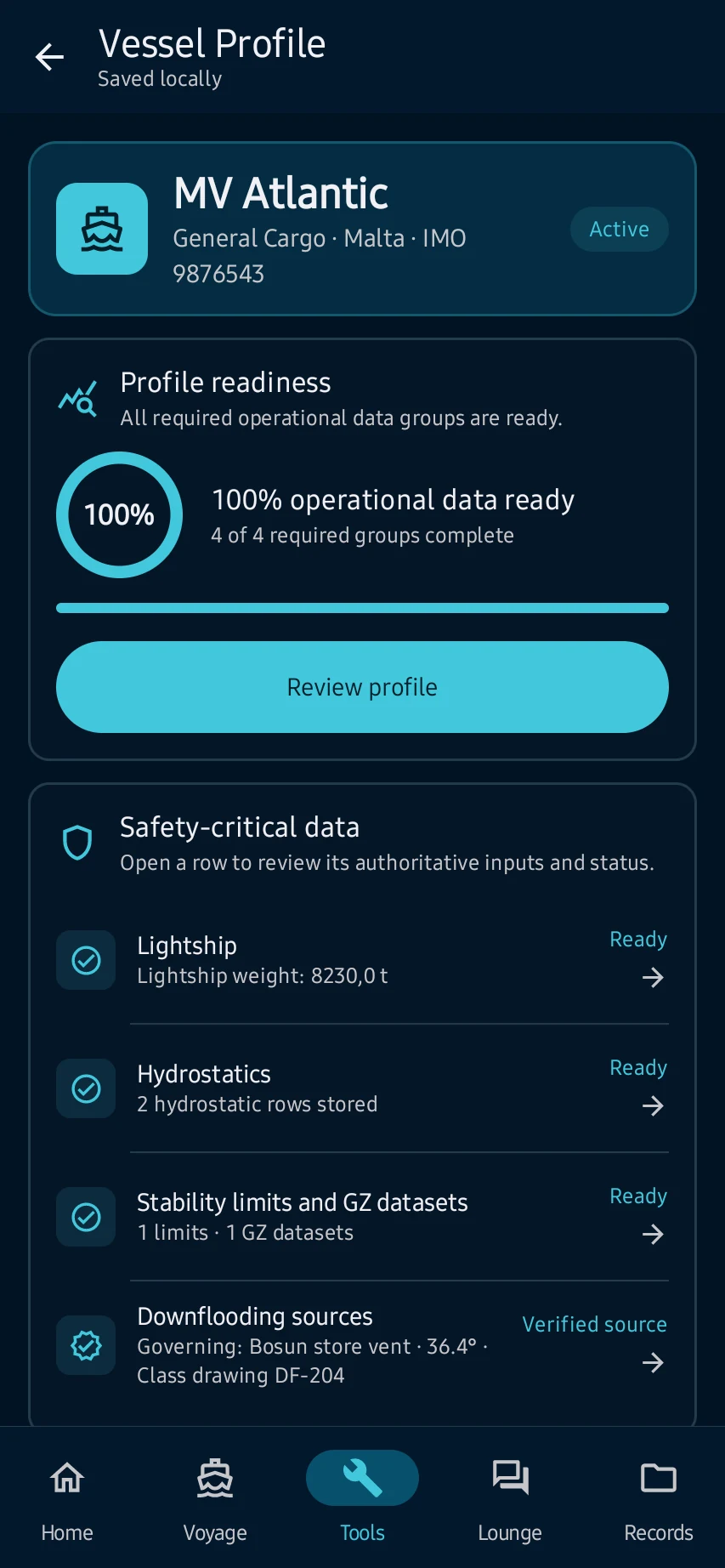
  3. Open Vessel Profile and load the clearly identified built-in example vessel to explore the app; never carry example values into an operational decision.
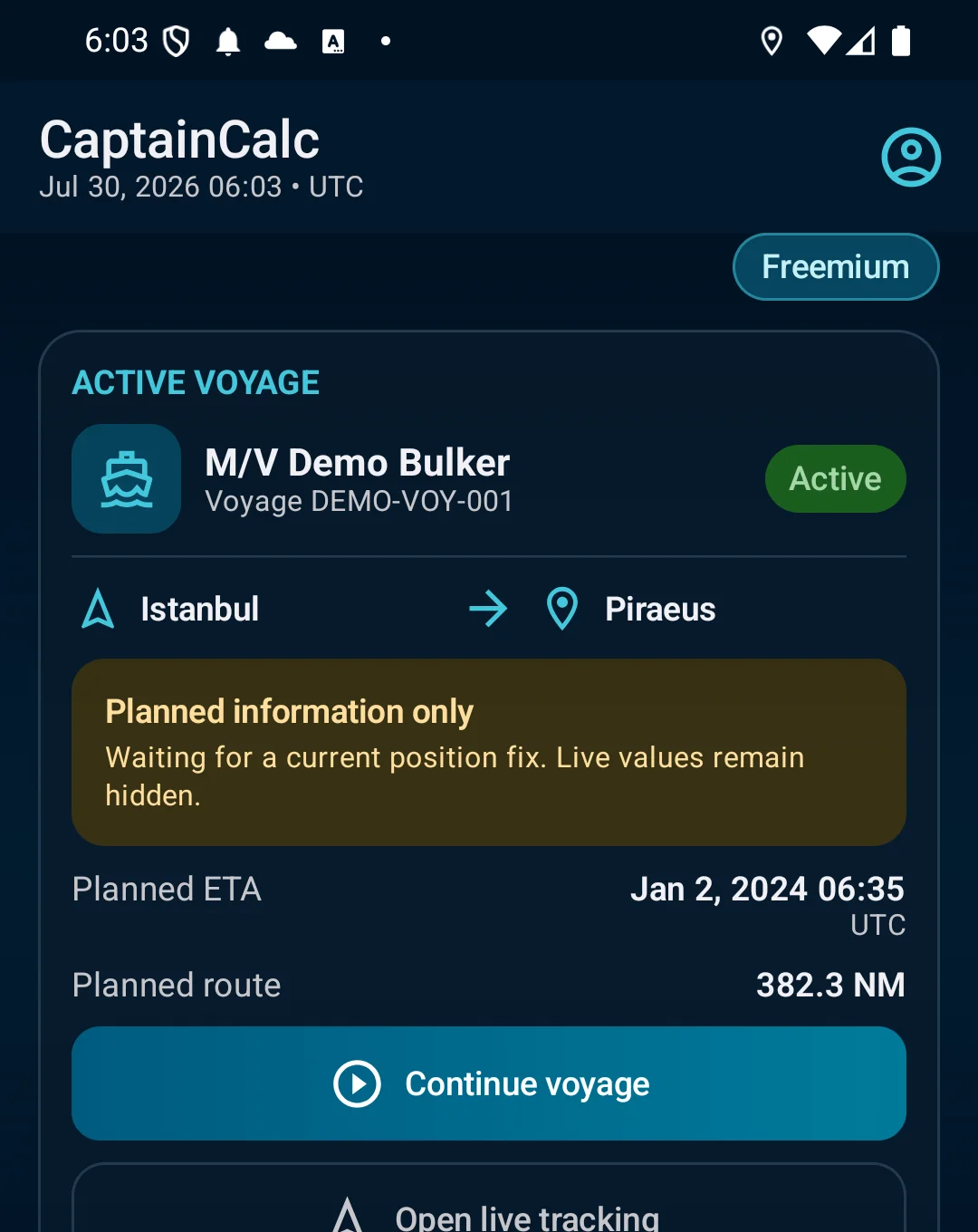
  4. Return to Home and confirm the selected vessel, available workspaces and access/data requirements; resolve any missing requirement before starting a task.

See the main screens

01

Open Settings and select the working language and units shown by the app; confirm the interface changed before entering vessel data.

Install and complete first launch: Open Settings and select the working language and units shown by the app; confirm the interface changed before entering vessel data.
02

Review Privacy, advertising, offline and backup controls for your region and access level; read the decision-support and data-boundary notices before continuing.

Install and complete first launch: Review Privacy, advertising, offline and backup controls for your region and access level; read the decision-support and data-boundary notices before continuing.
03

Open Vessel Profile and load the clearly identified built-in example vessel to explore the app; never carry example values into an operational decision.

Install and complete first launch: Open Vessel Profile and load the clearly identified built-in example vessel to explore the app; never carry example values into an operational decision.
04

Return to Home and confirm the selected vessel, available workspaces and access/data requirements; resolve any missing requirement before starting a task.

Install and complete first launch: Return to Home and confirm the selected vessel, available workspaces and access/data requirements; resolve any missing requirement before starting a task.

What you'll see

Return to Home and confirm the selected vessel, available workspaces and access/data requirements; resolve any missing requirement before starting a task.

CaptainCalc is decision support. It never replaces approved stability data, loading computers, ECDIS, official publications, procedures or professional judgment.

Get CaptainCalc on Google Play

Freemium keeps essential online tools available with ads. Premium removes ads, raises limits and unlocks the complete offline professional workspace.

Get it on Google Play